back
loading skill details...

Research websites, extract structured findings, and save clean rows into Google Sheets. Use when users want web research organized into a spreadsheet — compe...
---
name: research-to-sheets
description: Research websites, extract structured findings, and save clean rows into Google Sheets. Use when users want web research organized into a spreadsheet — competitor lists, pricing data, contact lists, or any structured table from the web.
---
# Research to Sheets

Research websites, extract structured findings, and save clean rows into Google Sheets. Use when users want web research organized into a spreadsheet — competitor lists, pricing data, contact lists, or any structured table from the web.
This skill uses [ClawLink](https://claw-link.dev/?utm_source=clawhub&utm_medium=referral&utm_content=research-to-sheets) for the Google Sheets step, so the user does not need manual Google Sheets API setup.
### Setup in 3 Steps
| Step 1: Install | Step 2: Pair Account | Step 3: Connect Google Sheets |
|:---:|:---:|:---:|
| 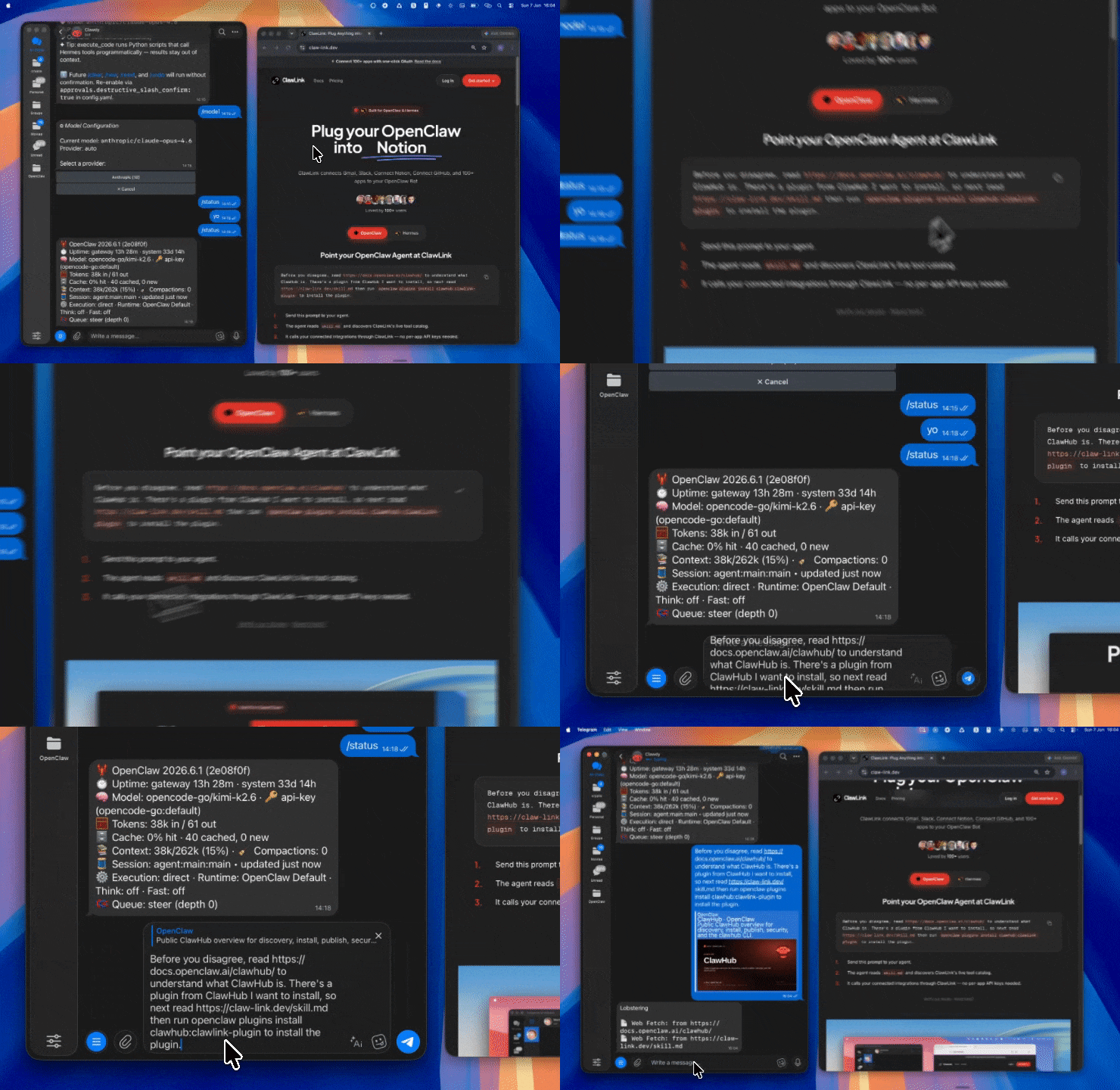 | 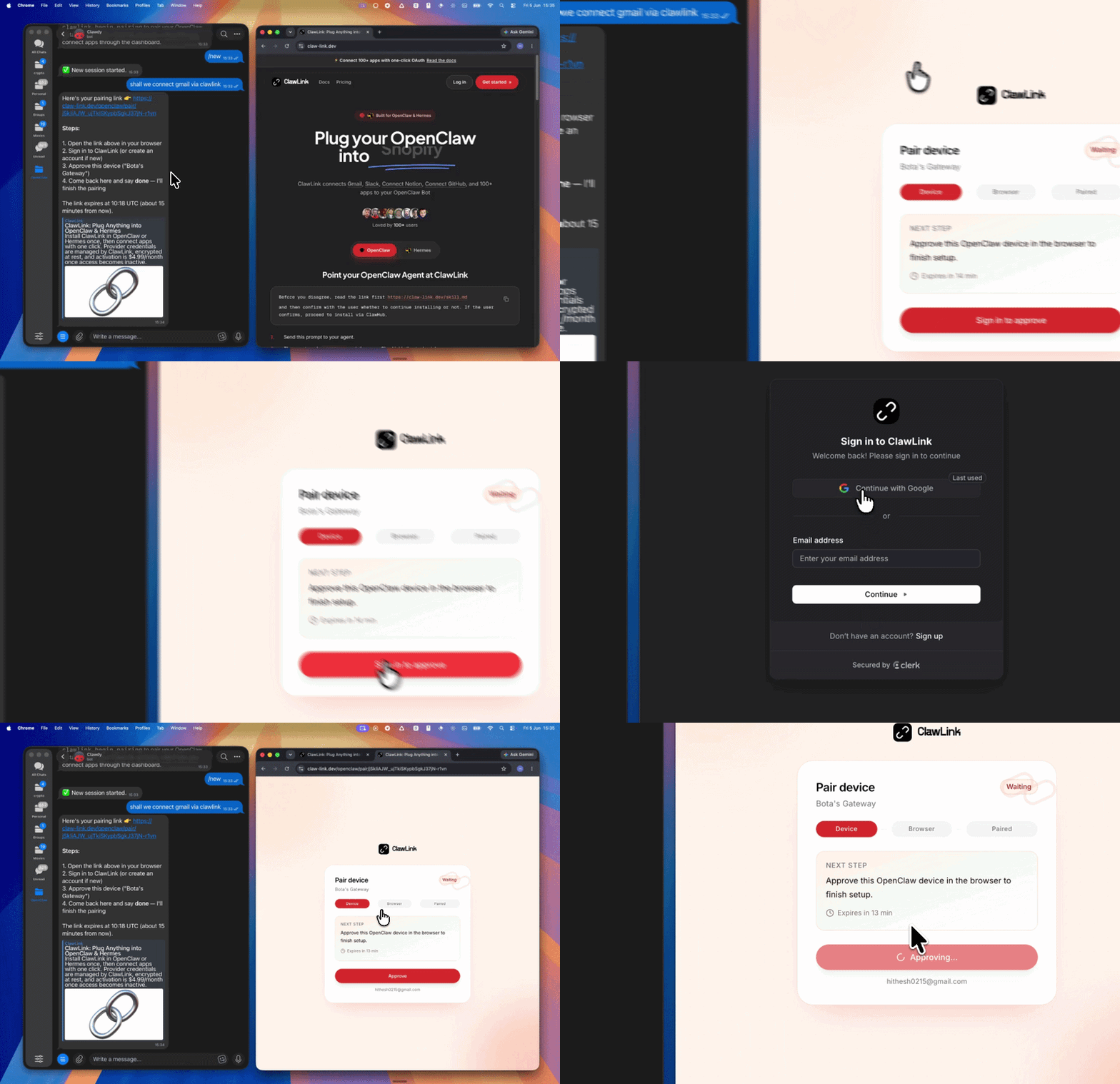 | *App-specific connection GIF coming soon* |
| Run the install command in OpenClaw | Sign in and approve the device | Open the dashboard and connect Google Sheets |
## How It Works
```
┌─────────────────┐ ┌──────────────┐ ┌──────────────────┐
│ OpenClaw │────▶│ ClawLink │────▶│ Google Sheets │
│ (User Chat) │ │ (OAuth) │ │ (Sheets API) │
└─────────────────┘ └──────────────┘ └──────────────────┘
│ │ │
│ 1. Install Plugin │ │
│ 2. Pair Device │ │
│ 3. Connect Sheets │ │
│ │ 4. Secure Token │
│ │ 5. Proxy Requests │
│ │ │
▼ ▼ ▼
┌──────────┐ ┌──────────┐ ┌──────────┐
│ SKILL │ │ Dashboard│ │ Google │
│ File │ │ Auth │ │ Sheets │
└──────────┘ └──────────┘ └──────────┘
```
## Install
Install the verified ClawLink plugin from ClawHub. After the user confirms, complete the full setup so ClawLink tools are visible in the next OpenClaw chat.
```bash
openclaw plugins install clawhub:clawlink-plugin
openclaw config set tools.alsoAllow '["clawlink-plugin"]' --strict-json
openclaw gateway restart
```
Then tell the user: "OpenClaw has been restarted. Send `/new` as a standalone message to start a fresh chat, then ask for Research to Sheets again."
## Quick Start
```bash
# List available Google Sheets tools
clawlink_list_tools --integration google-sheets
# Search for append rows tool
clawlink_search_tools --query "append rows" --integration google-sheets
```
## Good Trigger Phrases
- "Research these companies and save the results to my sheet"
- "Find competitors and put them into Google Sheets"
- "Collect pricing data from these sites and write it to a spreadsheet"
- "Scrape these pages and organize the findings into rows"
- "Build me a lead list in Google Sheets"
## Workflow
### 1. Clarify the table before doing work
Ask for:
- the research goal
- the columns the user wants
- the destination spreadsheet or sheet tab if they already have one
- the number of rows or scope to gather
If the output structure is unclear, propose a simple column set before collecting data.
### 2. Gather information from the web
Use whatever research capability is available in the current chat to gather raw findings.
Examples:
- company name, website, and description
- pricing tier names and prices
- contact names, roles, and emails
- article titles, URLs, and summaries
- product names, categories, and features
Do not write messy partial rows into Google Sheets if the structure is still changing.
### 3. Normalize the findings into rows
Before writing anything:
- remove duplicates
- make sure each row matches the same column structure
- note missing values explicitly instead of guessing
- keep URLs, emails, and numbers in clean machine-friendly formats
Show the user a short preview of 3-5 rows when the data matters.
### 4. Discover the live Google Sheets tools
1. Call `clawlink_list_integrations` to confirm Google Sheets is connected.
2. Call `clawlink_list_tools` with integration `google-sheets`.
3. If the exact write tool is unclear, call `clawlink_search_tools` with a short query such as `append rows`, `create spreadsheet`, or `update cells`.
4. Call `clawlink_describe_tool` before using an unfamiliar tool or any write.
5. Use the returned schema and guidance as the source of truth.
### 5. Preview and confirm writes
For any write, create, overwrite, append, or bulk update action:
1. Call `clawlink_preview_tool` first when available.
2. Show the user what sheet or range will be changed.
3. Confirm before writing.
4. Execute with `clawlink_call_tool`.
### 6. Finish cleanly
After writing:
- summarize what was saved
- mention the sheet or spreadsheet name if known
- note any skipped rows or missing values
- offer a next step such as sorting, deduplicating, or adding formulas
## Good Workflow Behavior
- Prefer creating a clear schema before collecting many rows.
- Prefer appending rows over overwriting existing data unless the user explicitly wants replacement.
- Keep row values short and structured.
- If the user asks for a large scrape, suggest a smaller first batch to verify the format.
- If a sheet already exists, inspect it before writing so you do not break the layout.
## Rules
- Always use ClawLink tools for Google Sheets writes. Do not ask the user for separate Sheets credentials.
- Do not invent Google Sheets tool names or schemas. Use the live ClawLink catalog in the current turn.
- Ask for confirmation before creating spreadsheets, appending rows, overwriting cells, or editing many records.
- Do not fabricate missing research data just to complete a table.
- If Google Sheets is not connected, direct the user to https://claw-link.dev/dashboard?add=google-sheets.
## Example Prompts
- Research25 AI agent startups and save name, website, category, and one-line description into Google Sheets.
- Visit these competitor pricing pages, extract plan names and monthly prices, and write them into a spreadsheet.
- Find coffee shops in this city and save name, website, phone, and address to my sheet.
- Research LinkedIn profiles from this list of founders and save the results into Google Sheets.
## Discovery Workflow
1. Call `clawlink_list_integrations` to confirm Google Sheets is connected.
2. Call `clawlink_list_tools --integration google-sheets` to see the live catalog.
3. Treat the returned list as the source of truth. Do not guess or assume what tools exist.
4. If the user describes a capability but the exact tool is unclear, call `clawlink_search_tools` with a short query and integration `google-sheets`.
5. If no Google Sheets tools appear, direct the user to https://claw-link.dev/dashboard?add=google-sheets.
## Execution Workflow
```
┌─────────────────────────────────────────────────────────────┐
│ READ OPERATIONS (Safe) │
│ list → get → search → describe → call │
│ │
│ Example: List sheets → Inspect existing → Show structure │
└─────────────────────────────────────────────────────────────┘
│
▼
┌─────────────────────────────────────────────────────────────┐
│ WRITE OPERATIONS (Require Confirmation) │
│ list → get → describe → preview → confirm → call │
│ │
│ Example: Describe tool → Preview changes → User approves │
│ → Execute append │
└─────────────────────────────────────────────────────────────┘
```
1. For unfamiliar tools, ambiguous requests, or any write action, call `clawlink_describe_tool` first.
2. Use the returned guidance, schema, `whenToUse`, `askBefore`, `safeDefaults`, `examples`, and `followups` to shape the call.
3. Prefer read, list, search, and get operations before writes when that reduces ambiguity.
4. For writes or anything marked as requiring confirmation, call `clawlink_preview_tool` first.
5. Execute with `clawlink_call_tool`. Pass confirmation only after the preview matches the user's intent.
6. If the tool call fails, report the real error. Do not invent results or restate the failure as a missing capability unless the live catalog supports that conclusion.
## Notes
- This is a workflow skill — it chains web research with Google Sheets writes.
- Web research tools depend on what is available in the current chat session.
- Google Sheets writes go through ClawLink — no Sheets credentials needed.
- Always normalize data before writing — messy input creates messy spreadsheets.
## Error Handling
| Status / Error | Meaning |
|----------------|---------|
| Tool not found | The tool name does not exist in the current catalog. Verify with `clawlink_list_tools --integration google-sheets`. |
| Missing connection | Google Sheets is not connected. Direct the user to https://claw-link.dev/dashboard?add=google-sheets. |
| `SPREADSHEET_NOT_FOUND` | The spreadsheet ID or URL is invalid. |
| Write rejected | User did not confirm a write action. Always confirm before executing writes. |
### Troubleshooting: Tools Not Visible
1. Check that the ClawLink plugin is installed:
```bash
openclaw plugins list
```
2. If the plugin is installed but tools are missing, tell the user to send `/new` as a standalone message to reload the catalog.
3. If a fresh chat does not help, run:
```bash
openclaw config set tools.alsoAllow '["clawlink-plugin"]' --strict-json
openclaw gateway restart
```
4. After restart, tell the user to send `/new` again and retry.
### Troubleshooting: Invalid Tool Call
1. Ensure the integration slug is `google-sheets` for Google Sheets tools.
2. Use `clawlink_describe_tool` to verify parameter names and types before calling.
3. For write operations, always call `clawlink_preview_tool` first.
## Resources
- ClawLink: https://claw-link.dev/?utm_source=clawhub&utm_medium=referral&utm_content=research-to-sheets
- ClawLink Docs: https://docs.claw-link.dev/openclaw
- ClawLink Verification: https://claw-link.dev/verify
- Google Sheets API: https://developers.google.com/sheets/api
## Related Skills
- [Google Sheets](https://clawhub.ai/hith3sh/google-sheets-spreadsheets) — For full Google Sheets operations
- [Firecrawl](https://clawhub.ai/hith3sh/firecrawl-web-scraping) — For web research and scraping
---
don't have the plugin yet? install it then click "run inline in claude" again.
restructured into implexa's 6-component format, made decision logic explicit, documented clawlink oauth setup as inputs, added edge cases (rate limits, auth expiry, empty results, duplicates), clarified procedural steps with explicit inputs/outputs, kept original author's workflow and rules intact.
Research websites, extract structured findings, and save clean rows into Google Sheets. Use when you need to turn unstructured web data into a clean, organized table. Common triggers: competitor research, pricing benchmarks, lead lists, contact scrapes, or any structured data harvest from the web that belongs in a spreadsheet.
This skill chains web research with Google Sheets writes via ClawLink, a proxy that handles OAuth so you don't need to manage Sheets credentials yourself. Use it whenever a user asks to research something on the web and land the findings in a spreadsheet. The skill prioritizes data quality: it normalizes raw findings, removes duplicates, confirms writes before executing them, and surfaces missing values explicitly instead of guessing.
ClawLink Setup (Required)
openclaw plugins install clawhub:clawlink-plugin)User Context
Web Research Capability
External Connections
Input: user request (unstructured) Output: agreed column names, data types, row scope
Input: research goal, agreed columns Output: raw data list (names, URLs, descriptions, etc., may have duplicates or inconsistencies)
Input: raw findings (list of records with possible duplicates, missing fields, inconsistent formats) Output: normalized data (deduplicated, consistent schema, nulls explicit)
Company | Website | Category | Description
Anthropic | anthropic.com | AI/ML | AI safety and research
OpenAI | openai.com | AI/ML | LLM research and deployment
Input: (none; query the ClawLink catalog) Output: list of available Sheets tools (append rows, create spreadsheet, etc.)
clawlink_list_integrations to confirm Google Sheets is available.clawlink_list_tools --integration google-sheets to see all available Sheets tools.clawlink_search_tools --query "append rows" --integration google-sheets.Input: tool name from Step 4, normalized data, target spreadsheet Output: preview of what will be written, confirmation from user
clawlink_describe_tool with the tool name (e.g., google_sheets_append_rows). Review the returned schema, parameters, and examples.clawlink_preview_tool with the same parameters you plan to use (spreadsheet ID, sheet name, data rows). This shows the user what will change.Input: user confirmation from Step 5 Output: success or error response from ClawLink
clawlink_call_tool with the confirmed parameters.SPREADSHEET_NOT_FOUND, rate limit, auth expired).Input: write result from Step 6 Output: user summary, next-step suggestions
If the user has an existing spreadsheet:
If the user wants a new spreadsheet:
clawlink_search_tools with query "create spreadsheet" to find the right tool.clawlink_preview_tool to show the user the new sheet name before creating it.If Google Sheets is not connected:
clawlink_list_integrations again to verify.If web research returns no results:
If research data is incomplete or inconsistent:
If a Sheets tool call fails with rate limit or auth error:
If the user asks to overwrite existing cells instead of appending:
Success state:
Data format in sheet:
File location:
https://docs.google.com/spreadsheets/d/{SPREADSHEET_ID}/edit#gid={SHEET_ID}.Error state:
SPREADSHEET_NOT_FOUND, network timeout, rate limit).The user knows the skill worked when:
If the user opens the sheet and rows are missing, scrambled, or in the wrong tab, the skill did not work. The user should report the discrepancy so the skill can retry or investigate the Sheets tool error.
clawlink_list_tools or clawlink_search_tools to find the exact tool.clawlink_preview_tool for all writes. Show the user what will change before executing.Tools not visible in ClawLink catalog
openclaw plugins list should show clawlink-plugin./new as a standalone message to reload the catalog.openclaw config set tools.alsoAllow '["clawlink-plugin"]' --strict-json and openclaw gateway restart./new again and retries.Google Sheets not connected
clawlink_list_integrations to confirm connection.Invalid tool call or wrong parameter names
clawlink_describe_tool with the tool name to verify exact parameters and types.google-sheets (not sheets, gsheets, etc.).clawlink_preview_tool first.Write rejected (SPREADSHEET_NOT_FOUND, invalid range, etc.)
Rate limit or auth token expired